Showing posts with label menu bar. Show all posts

Wednesday, 1 May 2013

Awesome 3D flipping menu for blogger


Hi guys to I’m going show how to add flip (3D) menu for blogger as I tell menu previously I posted many of them checkout and this one 3D flipping and this will supports only chrome and safari browser I assume all using chrome and other browsers just rotates and show reverse of them to add this one to your blog or website also possible steps to follow
Adding menu


1.      Login to blogger account


2.      Click layout


3.      Click on Add a Gadget
4.      Scroll down and find HTML/JavaScript
5.      Leave title blank and Copy and paste the below code in content
6.      Click on save to save your work
7.      Replace http://vbdotnetcod.blogspot.com as your links
Code:


Tuesday, 5 March 2013

Fancy CSS3 & jQuery Lavalamp Menu For Blogger

Hi, today I’m going share about jQuery and CSS3 menu bar for blogger, I’m shared more different menu bars, drop down, vertical drop down, with CSS3 and its more effective to your blog. I told that I’m using jQuery and CSS3 this is first time with using JQuery in menu bar and it is so nice. There are six effective colors to match your blog color


 How to add this menu to blogger For understanding easily I’m divided the tutorials and they are below 

Step1: Adding scripts
Step2: Adding style
Step3: Adding the menu


1. Adding scripts

1. Go to Blogger Dashboard >Template

2. Click on Edit HTML

3. Hit Proceed
4. Find the below code in your template
    To find the code Press CTRL+F and type this code
5. Add below code just above it (if you already add Jquery library for your blog then ignore the jQuery file script).


 2. Adding styles 


1. Now find the Below code


2. Add below CSS code before the code(tag)


3. Now save your template In style there are two methods for adding, one shown above and the other one is add from customize menu to add style like this type follow these steps
1. Go to Blogger template and click on customize
2. Click on Advanced and scroll down click Add CSS
3. Paste the code in that window and save it

 3. Adding menu 


1. Now come to page layout (above the template option)
2. Click on Add a Gadget(below the header )4
3. choose the HTML/JavaScript
4. Copy and paste the below code inside it


5.  Save your JavaScript file
 • Replace # with the links
 • Replace home, blog, contacts etc. with your link text which you want to appear on the menu bar
 • If you want change the background color of the menu then replace


one with below code line


Friday, 8 February 2013

Css3 Smooth Slideout Menu Bar For Blogger


In this tutorial im gonna  explain how  to  add  Css3 slide-out menu ba r for  your blog. This   is  also act like jquery menu  bar. This  menu  will  useful  who try to add  more  pages  for your blog.Im using Css3 and HTML for creating this widget.


Step1:
Go to blogger and login
Step2:
Go to blogger and click Layout
Step3:
Click Add Gadget and select 'HTML/Javascript
copy and Paste below code.


Step4:
Replace # with your links.
 Now save your HTML/Javascript'.

    You are done...

Vertical Hover Effect Css3 Menu Bar For Blogger


In this tutorial i'm gonna explain how to add vertical hover effect CSS3   menu bar for your blog. You can
change your  color  as your like. Im using juts  Css3 and HTML for these menu   bar.  In this tutorial You
can  get my all


Step1: Go to blogger and login


Step2:  Go to blogger and click Layout


Step3: Click Add Gadget and select 'HTML/Javascript


Step4: Copy and paste the code

Step5:
         Save Your "HTML/Javascript"

Wednesday, 5 December 2012

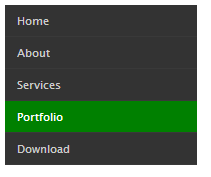
Pure CSS3 vertical drop down menu bar for blogger


Today I’m going show how to make vertical drop down menu bar and this one is added for blogger and website also, nowadays menu bar, drop down menu bar, vertical menu bar, vertical drop down menu bar etc earlier These are for websites only, but earlier they are made drop down menus using JavaScript now I’m going to show vertical drop down menu bar using PURE CSS3
First:
Login to blogger account
Second:
Go to blogger layout or page elements
Third:
Click Add Gadget select “HTML/JavaScript”
Forth:
Copy and paste the below code
DEMO


Fifth:
Save the “HTML/JavaScript”   

PURE CSS3 DROP DOWN MENU BAR FOR BLOGGER


Today I’m going show how to add drop down menu for blogger, this is pure CSS3 drop down menu bar no need and JavaScript or any things. In this

Step1:

Login blogger account

Step2:

Go to layout design

Step3:

Click ADD GADGET and select “HTML/JavaScript”

Step4:

Copy and paste the below code

DEMO


Step5:

Again copy and paste the below code, below the style


Monday, 3 December 2012

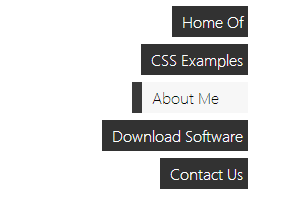
Pure css3 vertical side menu bar for your blogger

Today I’m going show (explain) how to add pure css3 vertical menu bar your blogger blog.
This makes your blog more attractive when your add this in your blog Step1:

Login blogger account

Step2:

Go to layout

Step3:

Click Add Gadget and select “HTML/JavaScript”

Step4:

Copy and Paste the below code


Pure CSS3 vertical menu bar for your blogger

Today I’m going show (explain) how to add pure css3 vertical menu bar your blogger blog.
This makes your blog more attractive when your add this in your blog Step1:

Login blogger account

Step2:

Go to layout

Step3:

Click Add Gadget and select “HTML/JavaScript”

Step4:

Copy and Paste the below code

DEMO


Pure css3 menu bar for your blogger

Today I’m going show (explain) how to add pure css3 menu bar your blogger blog, actually the menu bar contains sub menu text.
This makes your blog more attractive when your add this in your blog Step1:

Login blogger account

Step2:

Go to layout

Step3:

Click Add Gadget and select “HTML/JavaScript”

Step4:

Copy and Paste the below code
DEMO

#menu ul {
    list-style:none;
    font-family:segoe ui light;
    font-size: 28px;
    font-weight:d  bold;
    letter-spacing: 1-1px;
    line-height: 1.1em;
    float:left;
    clear:both;
    margin:20px;
	-webkit-transition:-webkit-transform .5s, background-color .5s;
}
#menu ul li{
    float:left;
}
#menu ul li a{
    display:block;
    text-decoration:none;
    padding:10px 10px 5px 10px;
    color:#fff;
    background-color:#323232;
    width:170px;
	-webkit-transition:-webkit-transform 1s, background-color 1s;
}
#menu ul li a span{
    display:block;
}
#menu ul li a:hover{
    background-color:#fff;
}
#menu ul li a:hover span.title{
    color:#323232;
  
}
#menu ul li a span.text{
    padding:0px 5px;
    font-family: segoe ui light;
    font-size: 14px;
    /*font-style: italic;*/
    font-weight: normal;
    letter-spacing: normal;
    line-height:20px;
    background-color:#323232;
    visibility:hidden;
    color:#fff;
	-webkit-transition:-webkit-transform 1s, background-color 1s, visibility 1s;
}
#menu ul li a:hover span.text{
    visibility:visible;
	
}